How to save and restore window layouts on macOS
You spent ten minutes arranging everything: editor on the left, terminal tucked bottom-right, docs in the browser on the second display, Slack hidden. Then you unplugged, restarted, or shared your screen in a meeting — and it's all gone. Here's what macOS can and can't do about it, and how to save a window layout you can bring back with one keystroke.
Why your Mac keeps forgetting your layout
macOS will sometimes reopen an app's windows after a relaunch, but it has no concept of a saved arrangement — a named snapshot of which apps are open, where every window sits, and what's in front of what. The worst offender is unplugging an external display: your carefully placed windows pile onto the laptop screen, and plugging back in rarely puts them back where they were.
The result is that every context switch is manual. Moving from deep work to a call, or from one project to another, means hiding some apps, launching others, and dragging windows back into position — several times a day, every day.
What the built-in macOS tools actually do
Apple ships three things that sound like they solve this. None of them quite do.
Mission Control and Spaces
Spaces give you separate desktops, which helps keep contexts apart. But a Space is not a saved layout: it doesn't record window positions or sizes, it can't relaunch an app you quit, and Spaces are unlabeled — you're left squinting at thumbnails. After a restart, you rebuild each desktop by hand.
Stage Manager
Stage Manager groups windows into sets as you work, which is handy for shuffling between recent tasks. The catch: the groups are recency-based, not saved. You can't name a set, can't pin an exact arrangement, and once you quit the apps, the set is gone.
Window tiling
macOS window tiling — dragging a window to an edge for halves and quarters — arranges what's open right now. Tiling utilities in the same family do this brilliantly too. But arranging and remembering are different jobs: none of these tools will bring back an arrangement next Tuesday.
The gap: macOS has several tools for arranging windows, and none for remembering an arrangement and bringing it back later.
What "restoring a layout" should actually mean
If a tool claims to restore your desktop, hold it to this list:
- Exact geometry — every window back at its recorded position and size, in the same front-to-back stacking order.
- Closed apps relaunch — if the layout includes an app you've since quit, restoring should open it again.
- Browser tabs come back — the tabs that belonged to that context reopen, without duplicating ones already open.
- Displays can change — a layout saved on two displays should adapt sensibly when you're on just the laptop.
- One keystroke — if it takes a trip through menus, you won't use it.
Save a window layout with Spud (about a minute)
Spud is a menu-bar workspace manager for macOS built around exactly this. Here's the whole workflow:
- Install and launch Spud. It's a menu-bar app — no Dock icon; look for the ▦ icon in your menu bar. On first launch, macOS asks for Accessibility permission, which Spud needs to read and move other apps' windows.
- Arrange your windows the way you want this context to look.
- Press ⌃⌥ S. Spud snapshots every open app and window — positions, sizes, stacking order, browser tabs. Prune anything you don't want in the snapshot, give it a name like Deep Work, and save.
- Bring it back anytime. Press ⌃⌥ Space to fan out your workspaces in a switcher, or jump straight in with ⌃⌥ 1…9.
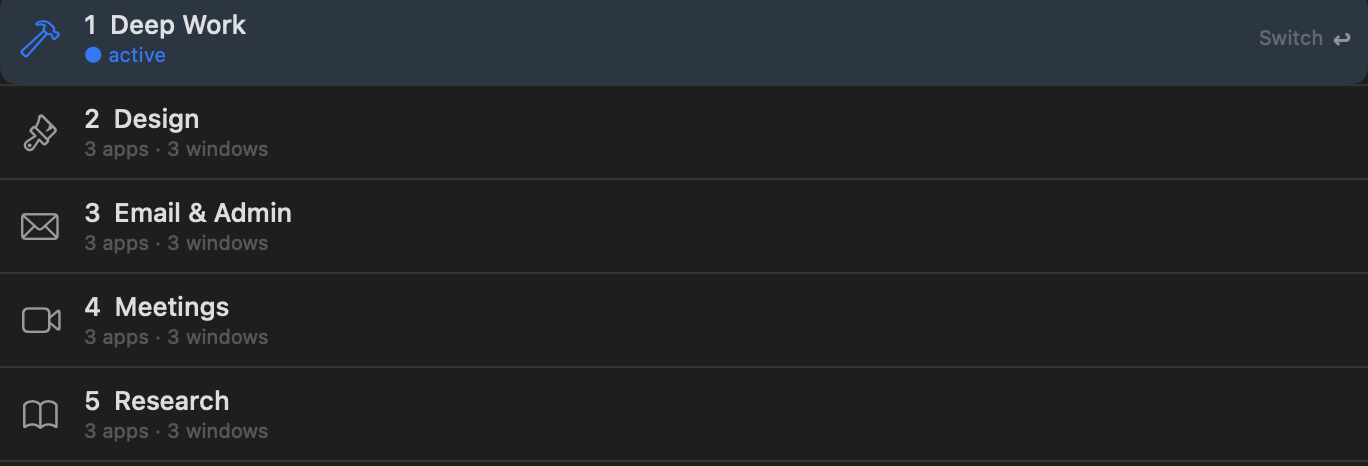
Restoring does the full job from the checklist above: closed apps relaunch, closed browser tabs reopen (without duplicating ones you already have), and every window lands back at its exact position, size, and z-order. Switching also hides the apps that belong to your other workspaces, so the new context comes up clean.
Changed your mind? ⌃⌥ Z is Back to Previous Layout — your screen returns to exactly how it was before the switch. And ⌃⌥ H dismisses the active workspace when you're done with it.
The docked-to-laptop problem
Layouts saved at a desk with two displays would be useless if they broke the moment you left. Spud remaps proportionally onto whatever displays are plugged in right now: undock, and your two-display layout re-places itself sensibly on the laptop screen; dock again, and everything returns to its true positions. One workspace, every hardware setup.
Frequently asked questions
Does macOS have a built-in way to save window layouts?
No. Spaces, Stage Manager, and window tiling all help you arrange windows, but none of them can snapshot an arrangement — apps, positions, sizes, tabs — and restore it later. You need a workspace manager for that.
Can restoring a layout reopen apps and browser tabs I closed?
With Spud, yes. Restore relaunches any app in the layout that's been quit, and reopens the browser tabs it recorded — skipping tabs that are already open so you don't end up with duplicates.
Does it work with multiple monitors?
Yes. Layouts adapt proportionally to whatever displays are connected, so the same workspace works docked at your desk and undocked on the go.
What does Spud cost?
The free tier includes 2 saved workspaces, forever. Spud Pro is $4.99/month for unlimited workspaces, full clipboard history, unlimited snippets, and Talk — and every download starts with a free 10-day Pro trial, no card required.